
Videos
How to jump start using your NOCO Boost X GBX155
More Videos
GBX155
HOW TO JUMP START.

ATTACH CLAMPS.

POWER ON.

START VEHICLE.

POWER OFF.
Or power off/on to reset.
GBX155
LEDs
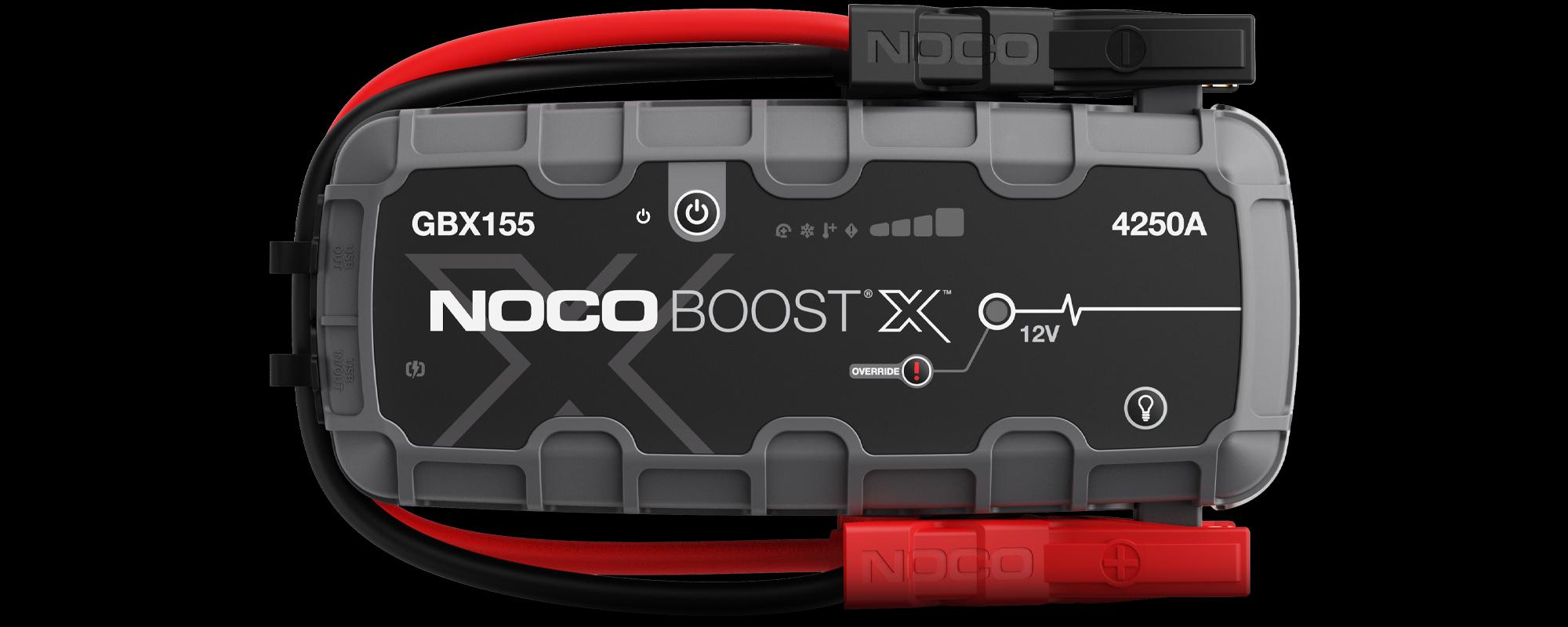

Power LED
Illuminates White when unit is "on." Illuminates orange after the 60-second timeout countdown.

Reverse Polarity
Unit is connected to the battery in reverse. Reverse the connections.

Hot/Cold LEDs
Illuminates solid or flashes Blue when internal temperature is too low. Illuminates solid or flashes Red when internal temperature is too high.

Error LED
Blinks “on” and “off” in various sequences (from 1 to 6 blinks) to convey error conditions.

Charge LEDs
Indicates the charge level of the internal battery.

Boost LED
Illuminates White when Boost is active. The LED flashes white when Manual Override feature is active.

Fast Charge
Illuminates White when fast charge is active. Fast charge LED turns red (solid/blinking) when there is an error.
GBX155
Buttons
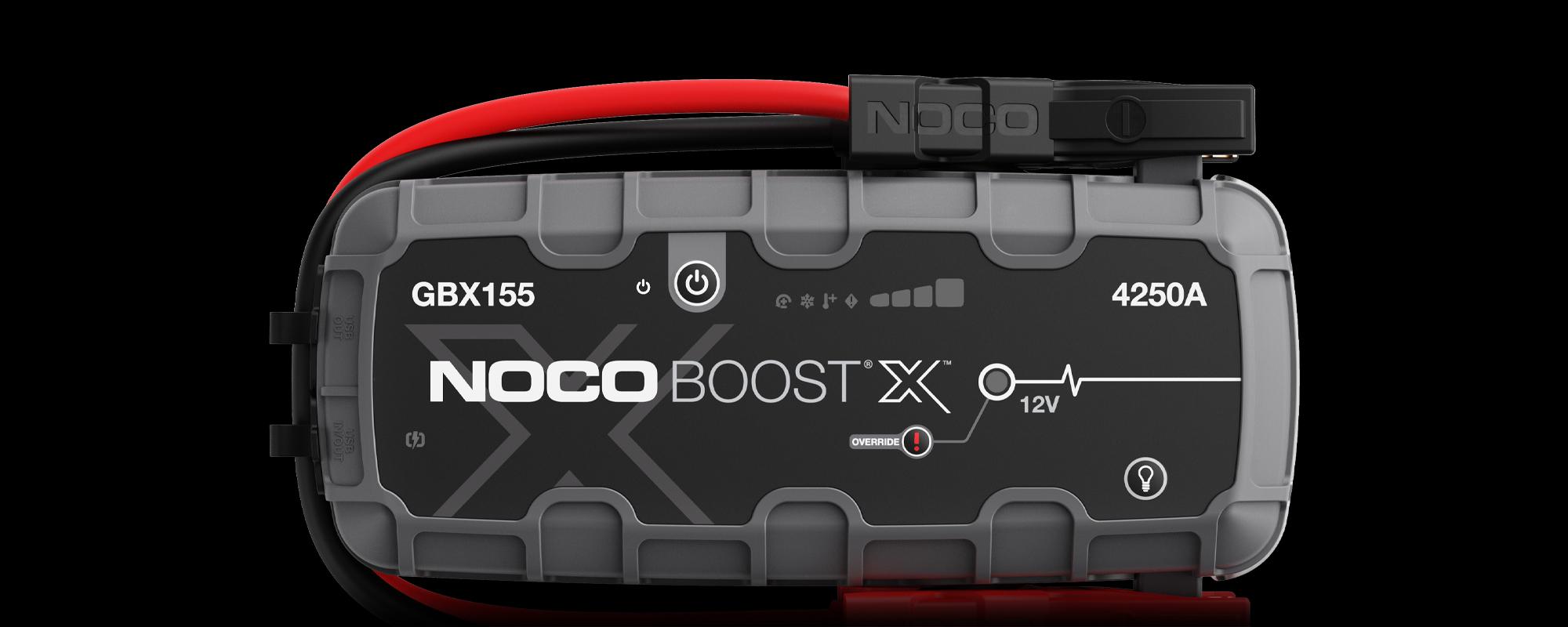

Power Button
Push to turn unit “on” & “off” or restart boost after 60-second timeout.

Manual Override
To enable, push and hold for three (3) seconds. WARNING: Disables safety protection and manually forces Boost "On."

Light Mode
Toggles the ultra-bright LED light through 7 light modes: 100% > 50% > 10% > SOS > Blink > Strobe > Off
Boost X
TROUBLESHOOTING.
ERROR
REASON / SOLUTIONS

Solid Red
Reverse polarity detected. / Reverse the battery connections.

Single (1) Flash
Short circuit detected on battery clamps. / Remove all loads, reconnect clamps to battery.
Double (2) Flash
High voltage detected at clamps (the GBX45 is connected to a voltage system greater than 12V, such as 24V).
Triple (3) Flash
Bad battery cell detected. / When an internal battery cell has failed during charging.
Quadruple (4) Flash
Charge timeout error (i.e. the GBX45 has been in bulk charge for too long).
Sextuple (6) Flash
Back-Charge detected into the GBX45 through the clamps while in a Boost Mode (i.e. the GBX45 is in Manual Override and then connected to a system greater than 12V, such as 24V).

Hot LED: Solid
Unit is fully operational, but approaching upper temperature limit. / Allow the unit to cool.
Hot LED: Flashing
Unit is too hot to jump start, only the flashlight is available in this state. / Allow the unit to cool.

Cold LED: Solid
Unit is fully operational, but approaching lower temperature limit. / Allow the unit to warm up.
Cold LED: Flashing
Unit is too cold to jump start, only the flashlight is available in this state / Allow the unit to warm up.

Flashing Red
If charging the unit, check the cable or charger for damage / If charging a USB-C device, check cable or device for damage / If problem persists, contact NOCO support.
Solid Red
Connected Charger is Incompatible. / Unplug USB Cable, Turn Off/On the Unit, Use Different Charger.

GBX155
MANUAL OVERRIDE
PUSH AND HOLD FOR 3 SECONDS.
WARNING: Disables safety protection and manually forces Boost X “On”. Only for use when a battery voltage is too low to be detected.
Connect, Charge, and Store.
GBX155 Accessories
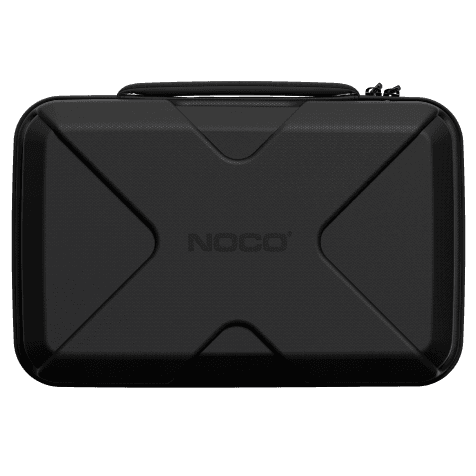
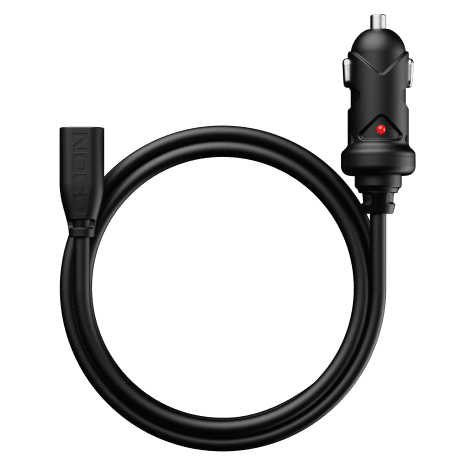
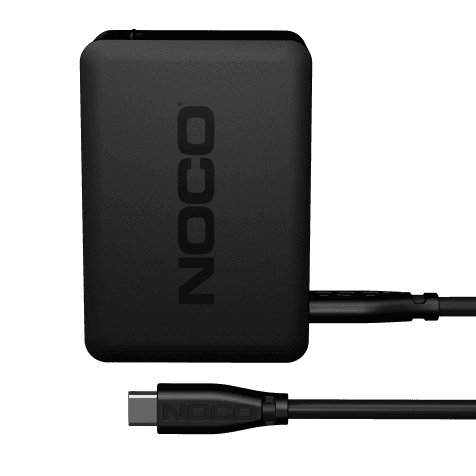
The GBX155 is compatible with an array of NOCO accessories. Fast charge in the car with GBC011 or at home with the U65. Store and protect your GBX155 with the GBC104.
Cookies On This Site
Our website uses cookies, pixels, and similar technology (“Cookies”) to make the website work and to improve your online experience. Cookies that are essential for the functioning of our website are always active and cannot be turned off. With your consent, however, we may also use non-essential Cookies to improve user experience, personalize advertisements, and analyze website traffic. By clicking “Accept All,” you consent to our use of all Cookies, including these non-essential Cookies. You may block non-essential Cookies by clicking “Reject,” or change your cookie settings by clicking “Preferences.”
By using our website, you acknowledge this notice, and by clicking “Accept All,” “Reject,” or “Preferences,” you agree to our Website Terms of Use. See our Cookie Policy and Privacy Policy to learn more.